

Excel is the most widely used tool for dealing with massive datasets. We can perform myriads of tasks of multiple dimensions in Excel. Visual Basic Application (VBA) is a very useful tool in Excel. However, sometimes, we find problems in enabling macros in Excel. In this article, I will explain 5 solutions for unable to enable Macros in Excel.
This is an Excel sheet that has VBA macros in it. You will notice that there is a warning sign that the Macro is disabled.
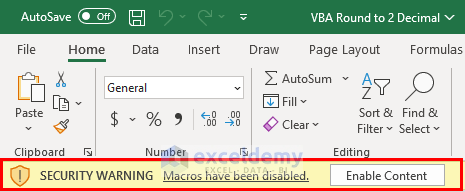
I will explain how to enable it.
Solution 1: Activating Enable Macros Option
- The simplest way to enable the Macros is to select the Enable Content
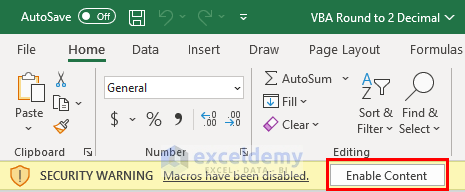
- Excel will enable the Macros.

Read More: [Fixed] Excel Macros Enabled But Not Working
Solution 2: Enabling Macros from the File Tab
The next solution is to enable Macros from the File tab. Let’s do it step by step.
Steps:
- First of all, go to the File
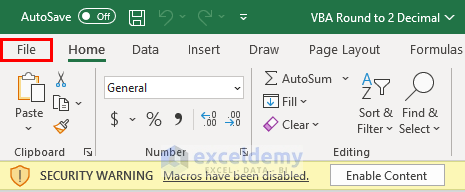
- Then, go to the Info
- After that, select Enable Content.

- Excel will enable the Macros.
Read More: [Fixed!] Macros Not Working in Excel
Solution 3: Enabling Macros from the Trust Center
The next solution is the use of the Trust Center.
Steps:
- First of all, go to the File
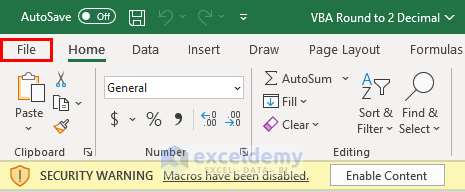
- Then, go to the Options.

- The Excel Options window will open.
- Then, select Trust Center.
- After that, go to Trust Center Settings.

- Then, from the Trust Center Settings, go to the Macros Settings.
- After that, select the Enable VBA Macros
- Then, click OK.
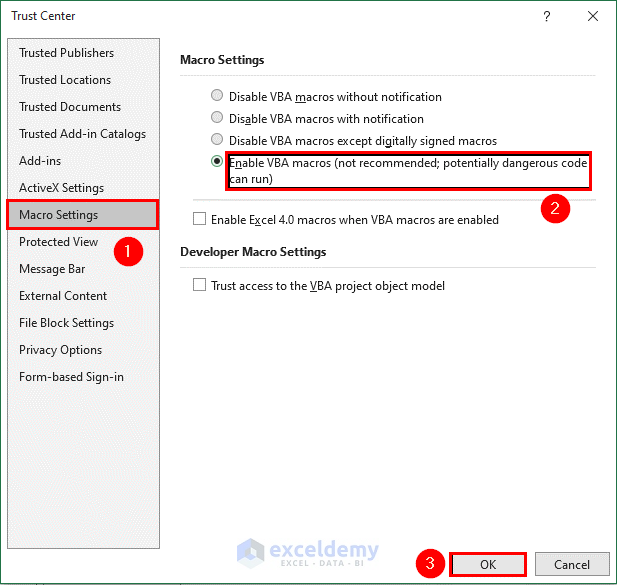
- Excel will enable the macros.
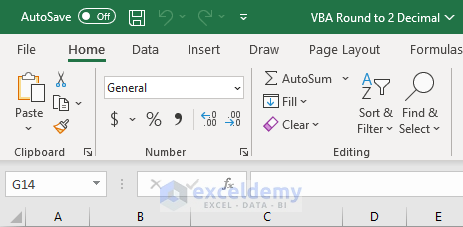
Solution 4: Opening Excel Files from Trusted Locations
This time, I will show another solution using the Trusted Location.
Steps:
- Go to the Trusted Location from the Trust Center Settings.
- Then, select Add New Location.
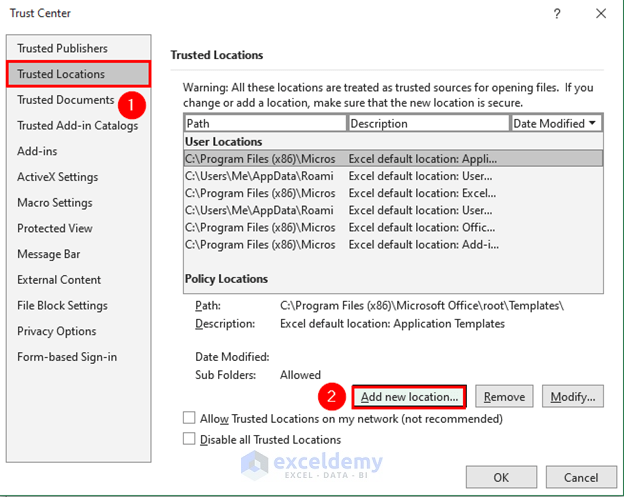
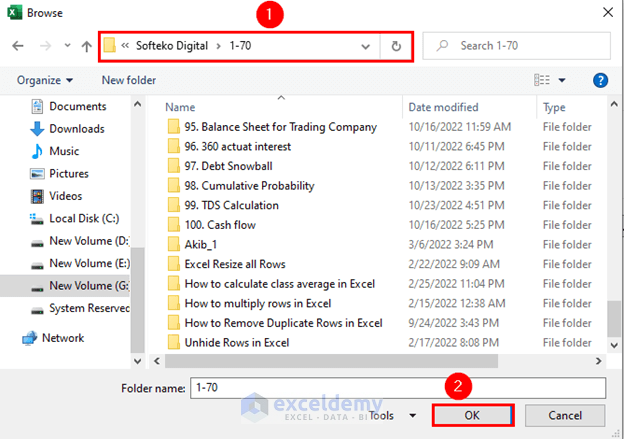
- A new box will appear. Select Browse from the box.
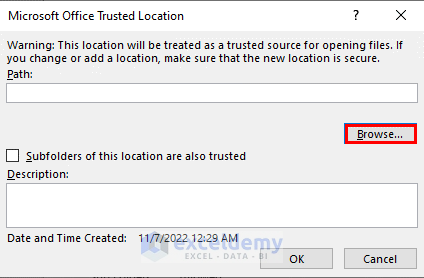
- Then, select the location that Excel will consider a trusted one.
- After that, click OK.
- Now, open the file from the trusted source.

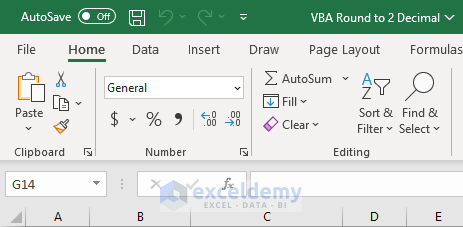
- After opening the file, you will see no warning message.
Solution 5: Using VBA xlSheetVeryHidden Property
Next, I will show how you can use the xlSheetVeryHidden property to enable macros.
Steps:
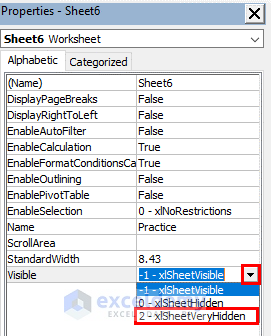
- Press ALT+F11 to bring the VBA window.
- Then, go to the View tab.
- After that, select Properties Windows.

- After that, from the visible field, select the xlSheetVeryHidden
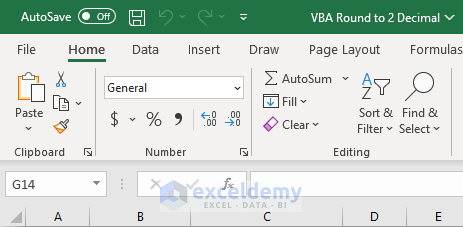
- Now, on returning to the Excel file, you will find no warning sign.
Things to Remember
- Enabling VBA Macro in the 3rd method is not recommended by Excel.
Conclusion
In this article, I have explained 5 solutions for the problem of for unable to enable Macros in Excel. I hope it helps everyone. If you have any suggestions, ideas, or feedback, please feel free to comment below.
Related Articles
- [Solve:] Cannot Edit a Macro on a Hidden Workbook
- Excel Macro Security
- [Solved]: Macro Settings Greyed out in Excel


