[Answered] Auto update of Excel Charts

This thread is solved
Hello,
I have excel charts in excel which are copied to an powerpoint file.

How i can update the excel charts in power point file when i open it without manual update of each chart. Is there any possibility?

Regards,
Faisal
 
Hello,
I have excel charts in excel which are copied to an powerpoint file.

How i can update the excel charts in power point file when i open it without manual update of each chart. Is there any possibility?

Regards,
Faisal
Hi Faisal,

You can link Excel charts to a PowerPoint presentation so that they update automatically when you open the PowerPoint file.

Follow these steps to do so:
  1. Copy the Chart from Excel
  2. Open your PowerPoint presentation.
  3. Go to the slide where you want to insert the chart.
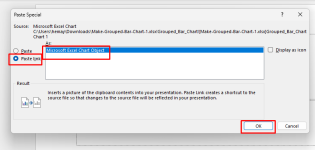
  4. Right-click and choose Paste Special.
  5. In the Paste Special dialog box, select Paste Link, choose Microsoft Excel Chart Object, and click OK.

Paste as Link.png

The chart in PowerPoint is now linked to the Excel file. When you update the data in Excel, the chart will also be updated in PowerPoint.

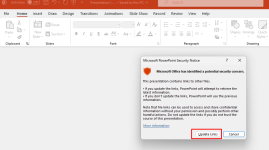
If the Excel file is updated, PowerPoint will prompt you a dialog box then select Update Links to update the chart automatically.

Auto Update Links.png

Make sure that the Excel file remains in the same location; otherwise, PowerPoint won’t be able to locate and update the charts.

This method ensures your charts in PowerPoint are always in sync with your Excel data without the need for manual updates each time.
 
You are most welcome. Keep exploring Excel with ExcelDemy. Be an active member to help each other.
 
Dear,

There is any issue in the link file that if you move the link file away then Excel chart in PPT file will not be updated. Is there any way by macro or vb that i just run the program and it updated the associated charts in PPT file instead of manually updating each time.

regards,
Faisal
 
Hello Faisal,

In this case, you can use the VBA code to auto-update your PPT file if the linked Excel file is moved.

It will loop through each slide in your PPT and update all linked charts automatically. You won't need to update them manually, even if the linked Excel file has been moved.

Code:
Sub UpdatePPTCharts()
    Dim pptApp As Object
    Dim pptPres As Object
    Dim pptSlide As Object
    Dim pptShape As Object
    
    ' Create PowerPoint Application object
    Set pptApp = CreateObject("PowerPoint.Application")
    
    ' Open the PowerPoint file
    Set pptPres = pptApp.Presentations.Open("C:\Path\To\Your\Presentation.pptx")
    
    ' Loop through each slide and each shape in the slide
    For Each pptSlide In pptPres.Slides
        For Each pptShape In pptSlide.Shapes
            ' Check if the shape is a linked chart
            If pptShape.Type = msoLinkedOLEObject Then
                ' Update the chart
                pptShape.LinkFormat.Update
            End If
        Next pptShape
    Next pptSlide
    
    ' Save and close the presentation
    pptPres.Save
    pptPres.Close
    
    ' Quit PowerPoint application
    pptApp.Quit
    
    ' Clean up
    Set pptShape = Nothing
    Set pptSlide = Nothing
    Set pptPres = Nothing
    Set pptApp = Nothing
    
    MsgBox "All charts updated successfully!"
End Sub

Remember to replace "C:\Path\To\Your\Presentation.pptx" with the actual path to your PowerPoint file.
 
Hi, how come my chart does not get updated automatically when i already format my data as table?

Does it require an particular excel version to do that?
 
Hello,

When you've formatted your data as a table in Excel, charts linked to that table should automatically update as you add or modify data. If your chart isn't updating automatically, here are several potential reasons and solutions to consider:

Ensure the Chart is Properly Linked to the Table
Make sure the chart's data range directly references the table. To check this:
  • Click on the chart >> go to the Design tab.
  • Ensure that the Chart data range refers to the table (e.g., =Table1), not a static range like A1:B10.
Recreate the Chart from the Table
Sometimes, recreating the chart ensures it's properly linked:
  • Select any cell within your table.
  • Go to the Insert tab >> choose the desired chart type.
    This method typically ensures the chart is dynamically linked to the table.
Check Excel's Calculation Settings
Automatic Calculation: Ensure that Excel is set to recalculate formulas and update charts automatically.
  • Go to the Formulas tab >> click on Calculation Options >> select Automatic.
Excel Version Compatibility
  • Auto-updating charts with tables are supported in Excel 2007 and later. However, newer versions like Excel 2016, 2019, or Microsoft 365 offer enhanced features and better stability for dynamic charts.
  • If you're using an older version, consider updating to access the latest features and improvements.
Table Structure Integrity
  • Ensure that your table has clear headers without any merged cells.
  • Avoid having blank rows or columns within your table, as they can disrupt the dynamic range.
External Links or References
If your chart references data from another workbook or sheet, ensure that.
  • The source workbook is accessible and not been moved or renamed.
  • Links are properly maintained. You can check this via Data >> Edit Links.
 
Thank you for your help but tried everything, still not work, don't know why
Hello,

When you've formatted your data as a table in Excel, charts linked to that table should automatically update as you add or modify data. If your chart isn't updating automatically, here are several potential reasons and solutions to consider:

Ensure the Chart is Properly Linked to the Table
Make sure the chart's data range directly references the table. To check this:
  • Click on the chart >> go to the Design tab.
  • Ensure that the Chart data range refers to the table (e.g., =Table1), not a static range like A1:B10.
Recreate the Chart from the Table
Sometimes, recreating the chart ensures it's properly linked:
  • Select any cell within your table.
  • Go to the Insert tab >> choose the desired chart type.
    This method typically ensures the chart is dynamically linked to the table.
Check Excel's Calculation Settings
Automatic Calculation: Ensure that Excel is set to recalculate formulas and update charts automatically.
  • Go to the Formulas tab >> click on Calculation Options >> select Automatic.
Excel Version Compatibility
  • Auto-updating charts with tables are supported in Excel 2007 and later. However, newer versions like Excel 2016, 2019, or Microsoft 365 offer enhanced features and better stability for dynamic charts.
  • If you're using an older version, consider updating to access the latest features and improvements.
Table Structure Integrity
  • Ensure that your table has clear headers without any merged cells.
  • Avoid having blank rows or columns within your table, as they can disrupt the dynamic range.
External Links or References
If your chart references data from another workbook or sheet, ensure that.
  • The source workbook is accessible and not been moved or renamed.
  • Links are properly maintained. You can check this via Data >> Edit Links.
 
You're welcome! Since the chart isn't updating automatically, could you please provide more information to help troubleshoot further? Here are a few questions that might help identify the issue:
  • Which version of Excel are you using?
  • Are there any external data sources linked to your table that might be causing issues?
  • Is the chart using any complex formulas, or is it based on straightforward data?
  • Can you share if there are any specific error messages or strange behavior happening when trying to update the chart?
Feel free to provide any screenshots if it helps!
 
You're welcome! Since the chart isn't updating automatically, could you please provide more information to help troubleshoot further? Here are a few questions that might help identify the issue:
  • Which version of Excel are you using?
  • Are there any external data sources linked to your table that might be causing issues?
  • Is the chart using any complex formulas, or is it based on straightforward data?
  • Can you share if there are any specific error messages or strange behavior happening when trying to update the chart?
Feel free to provide any screenshots if it helps!
Please answer my own post I just posted about having this exact same problem with no solution.
 
Если вам нужны ссылки - они ниже.

# Как войти на Black-Sprut Екатеринбург ? Инструкция 2026

Black-Sprut - это маркетплейс необычных и натуральных Ништяков. Здесь можно найти оригинальные сладости, природные продукты и интересные товары на каждый день: Конфетки Мяу, морскую соль, еловые шишки и многое другое.

## Что продаётся на Black-Sprut

Ассортимент маркетплейса объединяет товары, которые отличаются натуральностью и необычной подачей. Среди популярных категорий:

- Конфетки Мяу - оригинальное угощение для любителей сладкого;
- натуральная морская соль для приготовления разных блюд;
- ароматные еловые шишки;
- природные продукты и полезные Ништяки;
- необычные подарки для друзей и близких.

На Black-Sprut удобно выбирать товары для себя, дома или в подарок. В карточках размещаются описания, фотографии, состав и другая информация, помогающая определиться с покупкой.

## Как зайти на Black-Sprut Екатеринбург

Чтобы открыть маркетплейс, найдите официальный сайт Black-Sprut через поисковую систему или воспользуйтесь сохранённой ссылкой. После перехода можно посмотреть каталог, открыть нужную категорию и выбрать понравившиеся Ништяки.

Порядок действий понятный:

1. Откройте официальный сайт Black-Sprut .
2. Перейдите в каталог товаров.
3. Выберите Конфетки Мяу, морскую соль, еловые шишки или другие продукты.
4. Добавьте товары в корзину.
5. Укажите данные для получения заказа.
6. Выберите доступный способ оплаты и доставки.

Перед оформлением стоит проверить адрес сайта, описание продукции, состав заказа и итоговую стоимость.

### Рабочие ссылки на Black-Sprut

1. Главная ссылка - https://blspr.live/
2. Запасная ссылка - https://sprut.dark-link.top
3. Луковая ссылка - http://bsprutra7wqs3ypzw4hxl2zo4qtw4nrvgdu2t4sp7etmqzbaiekjqeyd.onion/
4. Tor Browser - https://www.torproject.org/download/
5. Резервная статья - прокладка на sprut3 - Сохраните main и reserve; при блокировке clearnet используйте onion.
Narrative-хвост
КУДА ЗАХОДИТЬ
4) TOR BROWSER -
Продолжение инструкции sprut3: зеркала, Tor, onion, регистрация.
=== Дополнительный материал проекта sprut3 (прокладка) ===
К каждому пункту ошибок: сверяйте URL, не верьте баннеру "официальный", не платите в личку. Reserve игнорируют чаще всего - зря. Tor качают с левых зеркал - тоже риск. Один аккаунт на все зеркала из списка - норма для .
На все формулировки ответ один: адреса из блока, onion в Tor, регистрация на проверенном домене. Не ищите новый URL под каждый вопрос. Соль и шишки - после входа, не на лендингах из выдачи.
Ниже - фрагменты расширенной инструкции; полный набор статей в каталоге sprut3.
Один аккаунт на main, reserve и onion; пароль храните отдельно от ссылок.
Список - пояснения
Запросы " ссылка", "зеркало", "вход 2026", "onion", "Tor" закрывает блок "КУДА ЗАХОДИТЬ". Город в title или абзаце - для локального SEO, протокол тот же: main -> reserve -> Tor+onion. Регистрация на главной, пароль не с почты. Каталог: соль после auth.
Продолжение инструкции sprut3: зеркала, Tor, onion, регистрация.
Я записал в заметку, какой пункт сработал - main или reserve - чтобы в следующий раз не гадать. Onion оставил только для Tor. Extra article прочитал, когда main на минуту лёг, но login делал на сайте. Так история про заканчивается практикой, а не теорией.
Сохраните main и reserve; при блокировке clearnet используйте onion.
Расширенные статьи лежат в папке sprut3 на рабочем столе.
Поваренная соль: мешок, пачка, крупность - в карточке. Сосновые шишки: декор, аромат - смотреть фото. Цифровые позиции - по правилам площадки. Сравните три предложения, не одно. Навигация внутри быстрее внешнего поиска "купить соль blacks...".
Итог: три входа, один аккаунт, без HTML.
Каталог текстом
5) EXTRA ARTICLE -


Onion-ссылка открывается только через Tor Browser. Перед входом внимательно проверьте адрес страницы.

## Почему покупателям нравится Black-Sprut

Главная особенность площадки - необычный ассортимент. Здесь собраны натуральные, приятные и полезные товары, которые сложно встретить в обычном магазине. Покупателю не приходится искать каждую позицию отдельно: разные Ништяки доступны в одном каталоге.

К преимуществам маркетплейса относятся:

- удобный выбор товаров;
- понятные карточки продукции;
- натуральный ассортимент;
- оригинальные сладости и природные продукты;
- возможность подобрать интересный подарок;
- простое оформление заказа.

Black-Sprut подходит тем, кто ценит натуральность, любит пробовать новое и хочет радовать себя необычными покупками.

## Black-Sprut Екатеринбург и кефворд

Запрос «Black-Sprut Екатеринбург » может использоваться для поиска информации о доступности товаров и доставки в конкретный населённый пункт. Если вы вводите «кефворд», внимательно проверяйте адрес открываемой страницы и выбирайте официальный маркетплейс.

В 2026 году Black-Sprut остаётся удобным местом для покупки Конфеток Мяу, морской соли, еловых шишек и других натуральных Ништяков. Это интересный маркетплейс с необычным ассортиментом, понятным каталогом и товарами, способными сделать обычный день немного приятнее.

 

Online statistics

Members online
4
Guests online
250
Total visitors
254

Forum statistics

Threads
477
Messages
2,229
Members
5,164
Latest member
tt789downloadcc
Back
Top