
[Solved] VBA - Insert User Form Disabled

Sidbloom

New member
Hello All,

Good day!

I have a user who wants to use VBA features on Excel. However, he is unable to use as the options are greyed out. Any suggestions?

I have already tried Office Repair through the scrub tool, installed .Net framework sdk 7.0. He has the Visual C++ redistributable already installed.

I tried with Safe Mode, with running the app as administrator, also checked other office apps (Word) same behavior

OS: Windows 10
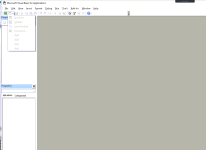
 

Attachments

  • Microsoft VBA Error.png
    Microsoft VBA Error.png
    14.1 KB · Views: 6
Any suggestions?
Hello Sidbloom,
Welcome to ExcelDemy forum! I see you have tried quite a few ways to fix your UserForm being greyed out. Have you tried enabling all macros in Excel? Sometimes, we miss out these small matters in complex situations like this. To enable all macros,
  • First, go to File > Options.
  • Afterward, click on Trust Center > Trust Center Settings > OK.
SIDBLOOM-2.png
  • Finally, go to Macro Settings > check Enable VBA macros > OK.
SIDBLOOM-1.png
Try this and let me know if it works. Good luck!!

Best Regards,
Yousuf Shovon
 
Hello Yousuf,

Thank you for your reply!

I enabled it already, along with "Enable Excel 4.0" and "Trust access to the VBA project object model".

Still, no luck!!

Regards
Santosh
 
Hello Yousuf,

Thank you for your reply!

I enabled it already, along with "Enable Excel 4.0" and "Trust access to the VBA project object model".

Still, no luck!!

Regards
Santosh
Dear Santosh,

Another indication of the UserForm being greyed out could be because of the VBA installation or settings are not properly configured. Please try the following steps to enable the UserForm option:

Step-1: Check Excel Options:
  • Open MS Excel and go to the File menu.
  • Click on Options to open the Excel Options window.
  • In the Excel Options window, select Customize Ribbon from the left sidebar.
  • Ensure that the Developer option is checked under the Customize the Ribbon section. If it is not checked, check the box to enable it.
  • Click OK to save the changes.
Step-2: Enable the Developer Tab:
  • Right-click on the Ribbon or Menu bar in Excel and select Customize the Ribbon.
  • In the Excel Options window, check the box for the Developer option under the Main Tabs section.
  • Click OK to save the changes and enable the Developer tab on the Ribbon. If the issue persists, then you may need to try repairing the Office.
Kindly let me know, if you require additional assistance, I will be glad to help further.

Best Regards,
Yousuf Shovon
 

Online statistics

Members online
0
Guests online
1,400
Total visitors
1,400

Forum statistics

Threads
456
Messages
2,020
Members
1,886
Latest member
taixiuonlinecab
Back
Top